Inside RevoGram

Maya shares a lighthouse photo. Alex asks where she took it. Follow the Coastal Photo Club from a first draft to its next photo walk.

Open the guest demo
In this tour

Compose in Post Studio

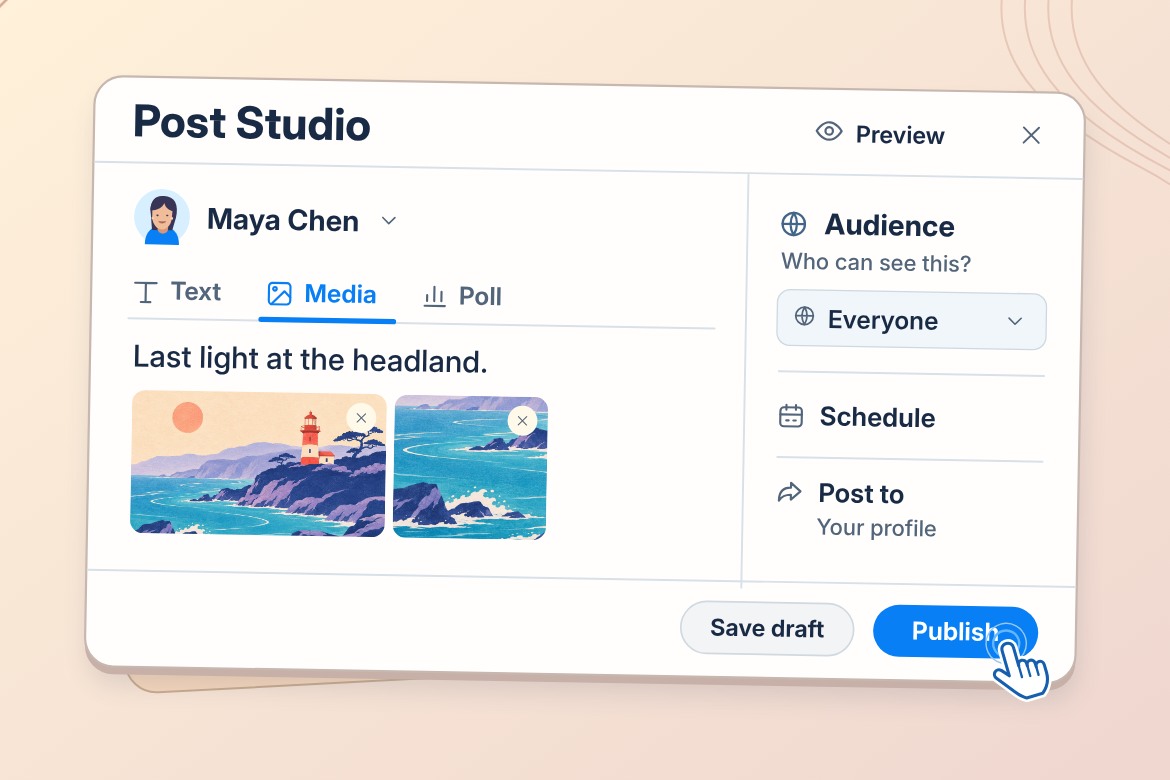
Maya adds a lighthouse photo and a close-up of the shore, then writes “Last light at the headland.” In Post Studio, she can preview the pair and choose who will see them.

With Everyone selected, she can publish to her profile, save a draft, or schedule the post for later.

Explore post formats
Illustrated Post Studio with two coastal photos attached, the audience set to Everyone, and Save draft and Publish controls.

Share photos in the news feed

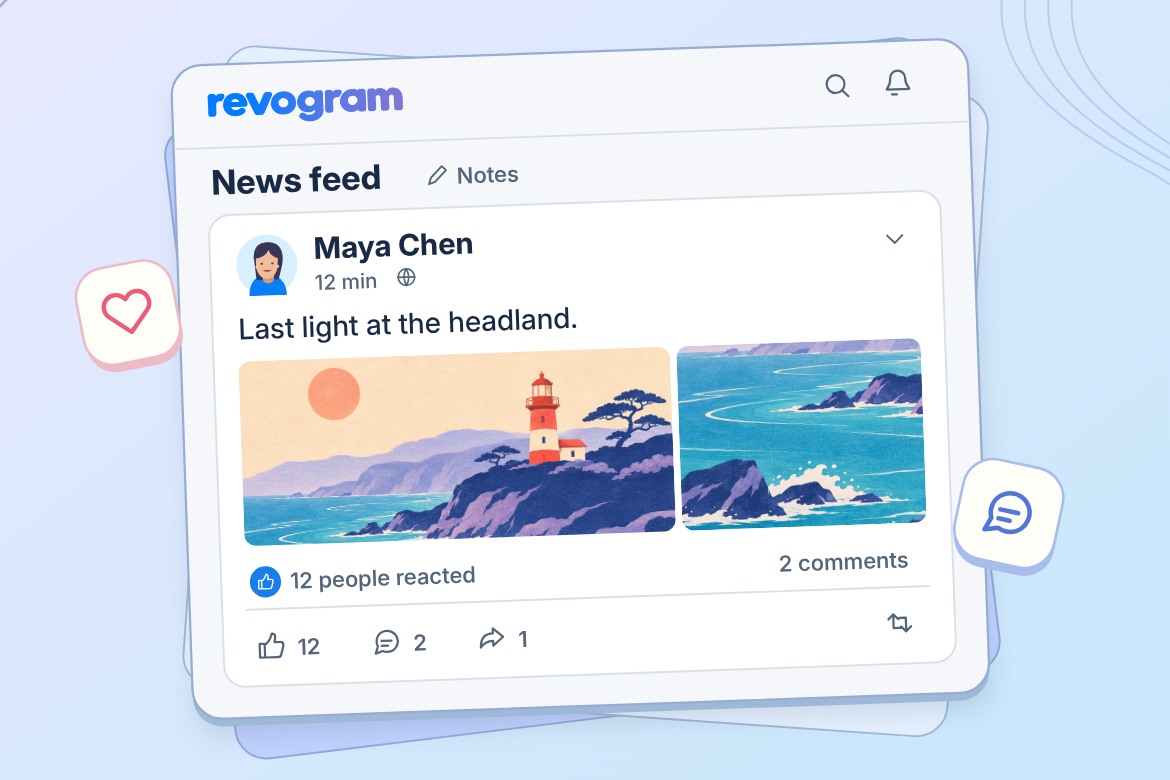
Maya’s caption and both photos appear together in the feed. Members can react, leave a comment, share the post, or repost it with a thought of their own.

A reader who wants to revisit the lighthouse can save the post to a collection.

How the feed is personalized
Illustrated RevoGram news feed. Maya shares a two-photo coastal post captioned Last light at the headland. Reactions, comments, sharing and repost controls sit below it.

Discuss a photo up close

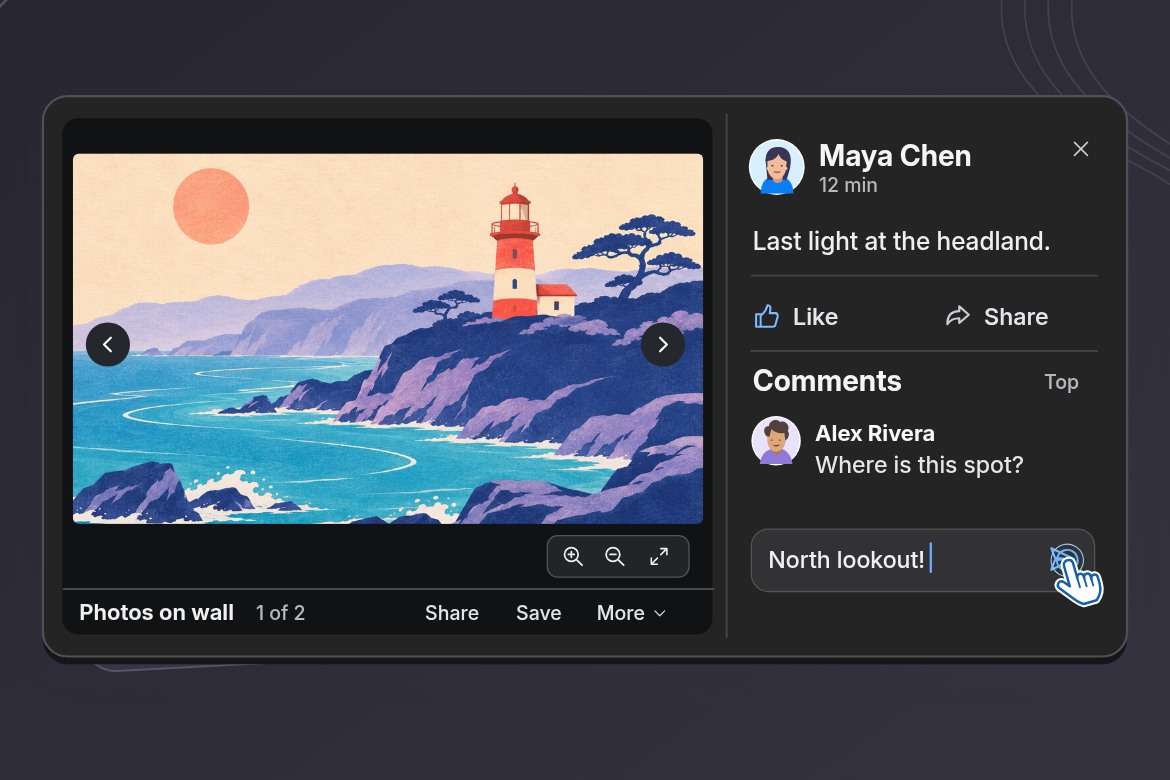
Alex opens the lighthouse photo and asks, “Where is this spot?” The discussion sits beside the image on desktop, so Maya can reply “North lookout!” while the photo is still in view.

The viewer lets Alex zoom in on the lighthouse or move to the second photo in the post.

Photo viewer settings
The charcoal photo viewer shows the lighthouse, navigation arrows and zoom controls. Alex asks where it was taken. A reply reading North lookout is ready to send.

Reply privately to a Story

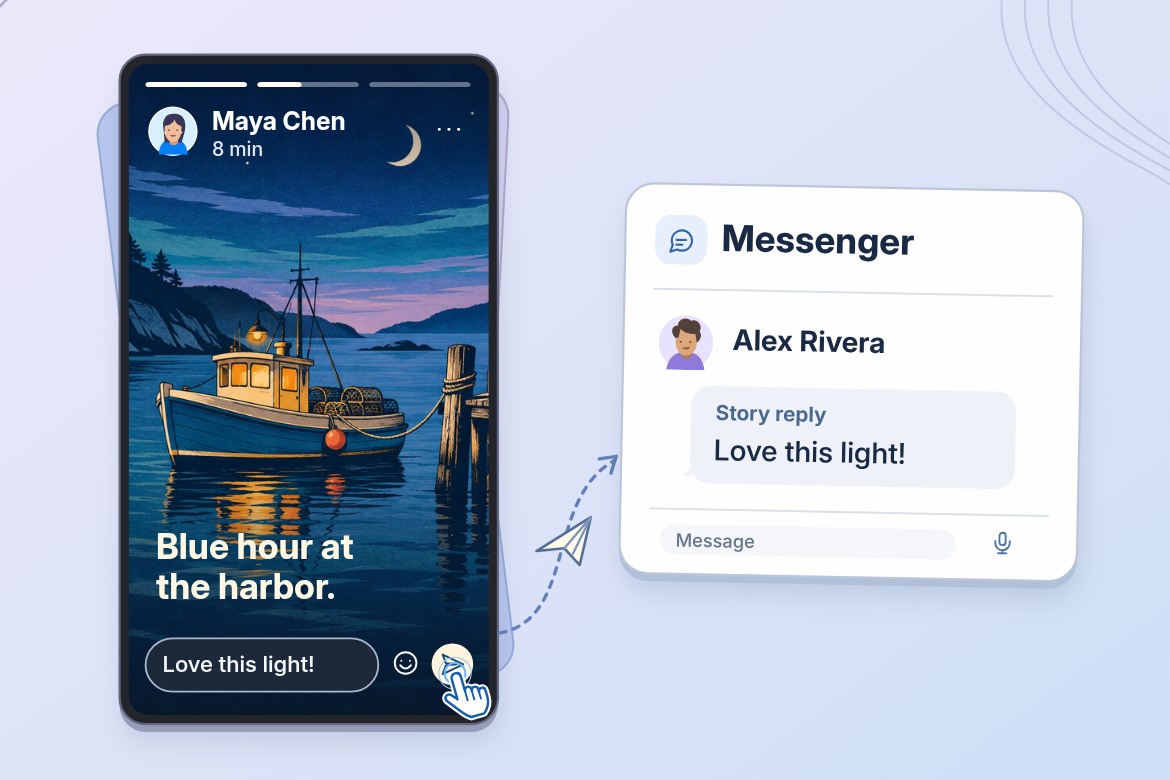
Maya shares a harbor photo in a 24-hour Story. Alex types “Love this light!” while viewing it and taps Send.

Maya receives those words in her private Messenger conversation with Alex. She can continue the conversation there.

Private Story replies
Alex sends “Love this light!” from Maya’s harbor Story. Maya sees the same reply in her private Messenger conversation with Alex.

Send a voice message

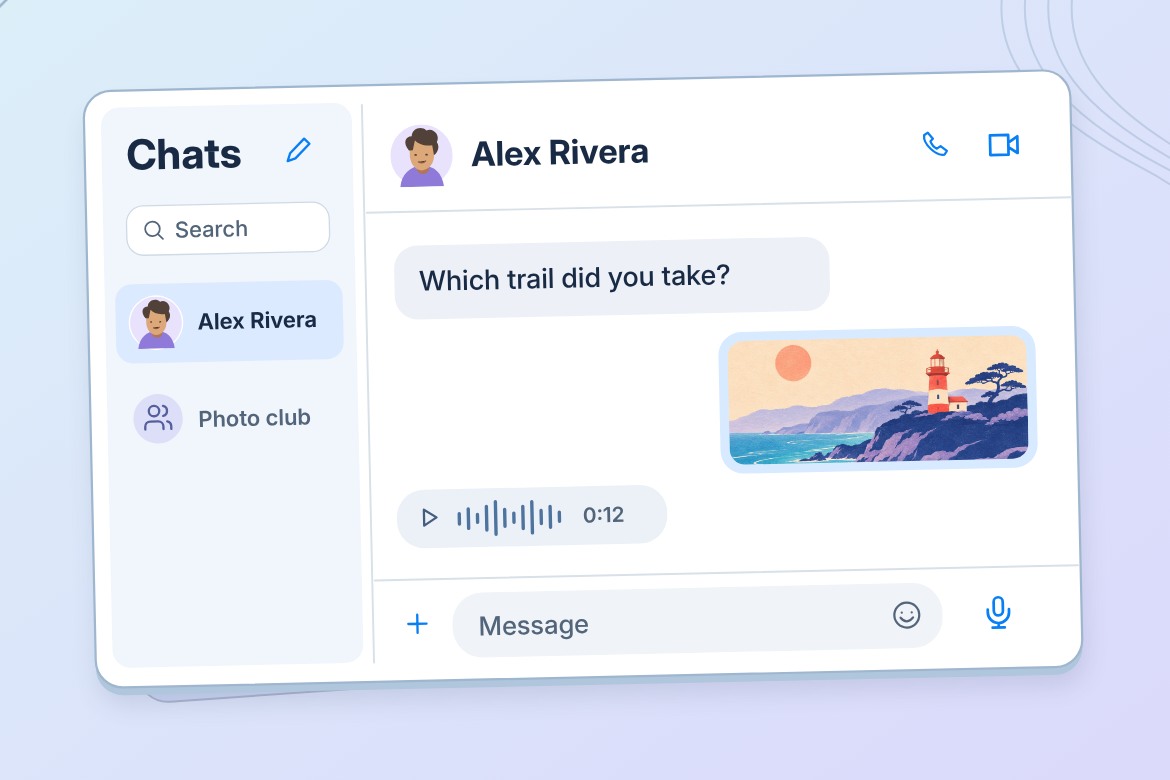
“Which trail did you take?” In Messenger, Alex can share the coastal photo and follow up with a voice recording. The play button lets the recipient listen inside the conversation.

Members can also move from a chat to an audio or video call.

Voice messages in RevoGram
Illustrated Messenger conversation with a shared photo, a playable voice message, and audio and video call buttons.

Pin a group announcement

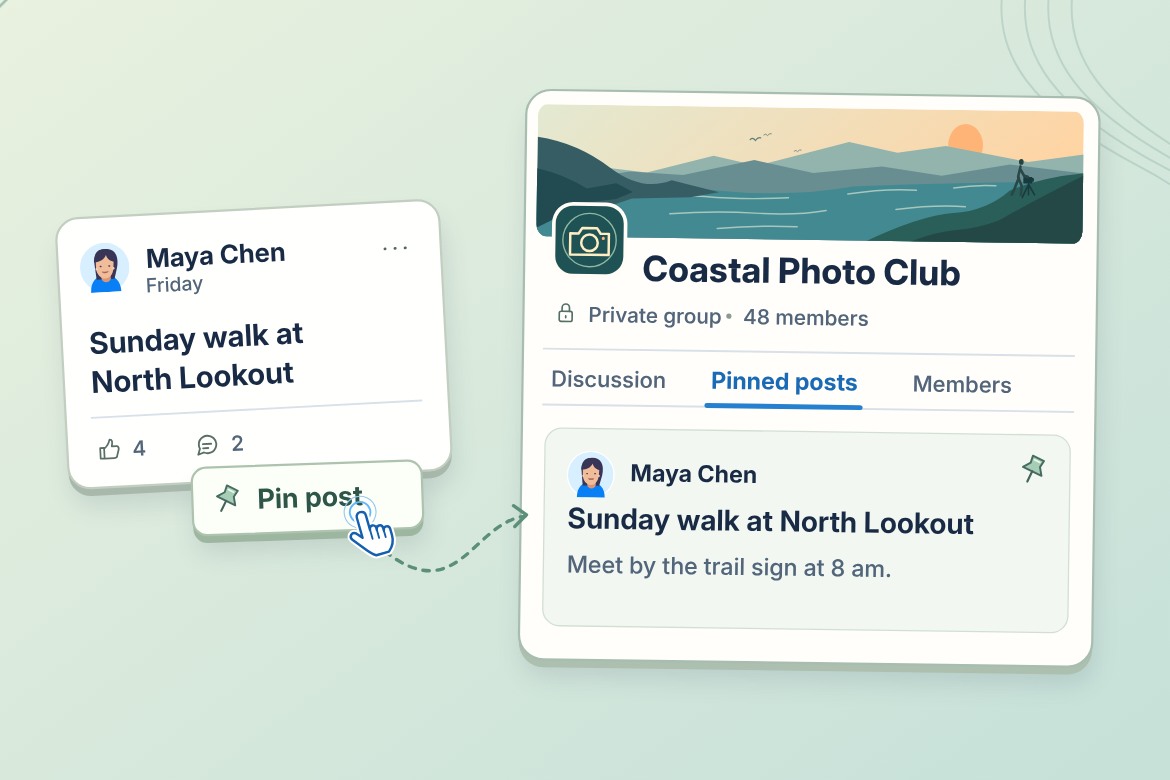
Maya posts the meeting point for Sunday’s walk in the Coastal Photo Club. As a group manager, she opens the post menu and chooses Pin post.

Members can find the trail sign and the 8 am meeting time under Pinned posts as new discussions arrive.

Pinned posts in groups and communities
Maya selects Pin post on “Sunday walk at North Lookout.” The same announcement appears in the Coastal Photo Club’s Pinned posts tab.

Plan a day with the event calendar

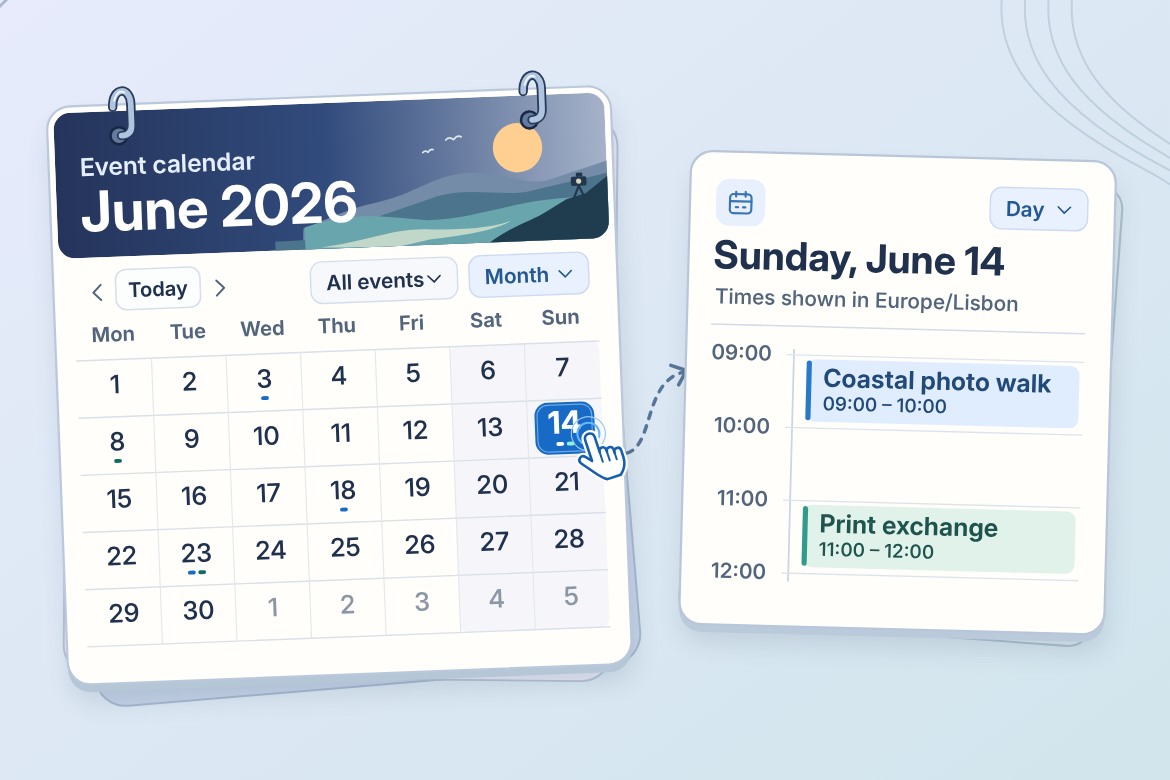
A member taps June 14 in Month view. Day view shows the coastal photo walk at 09:00 and the print exchange at 11:00 in the member’s chosen time zone.

Browse by day, week, month, or year, filter by location or ticket type, and select an event to open its page.

Calendar filters
A member taps Sunday the 14th on the June 2026 calendar. Day view opens for June 14 with a Coastal photo walk at 09:00 and a Print exchange at 11:00, shown in the Europe/Lisbon time zone.

Reserve a place on the walk

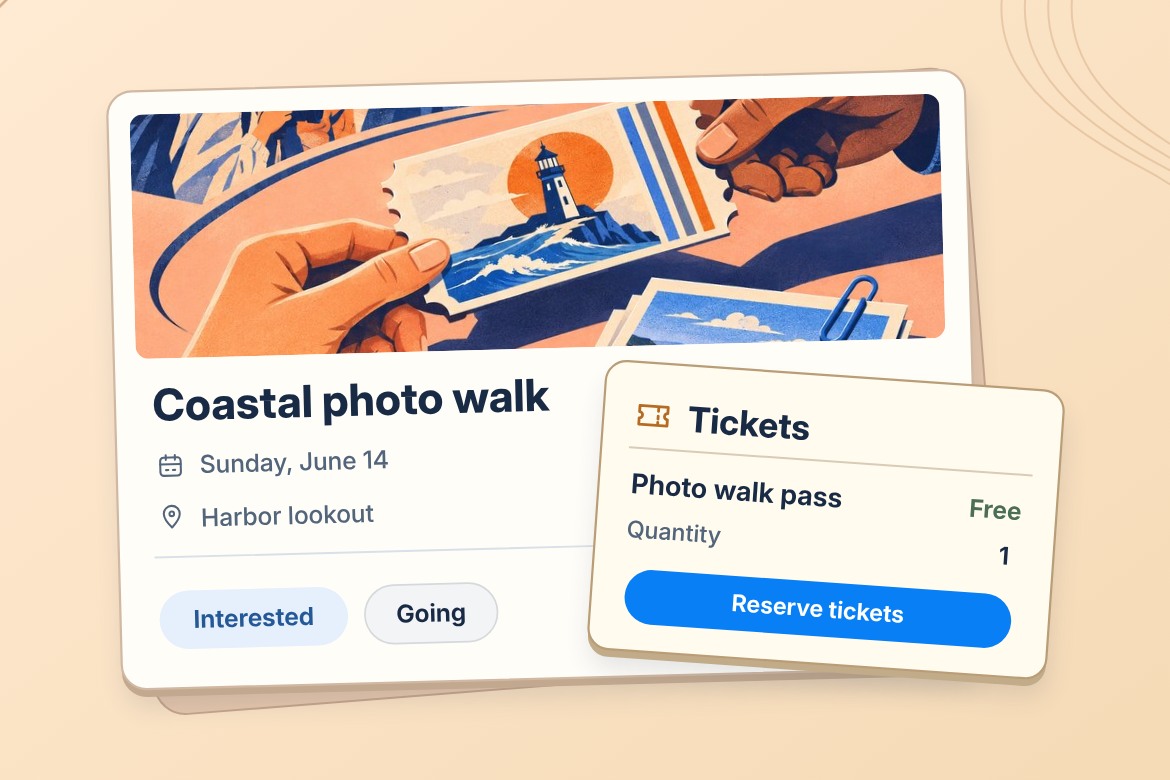
The event page lists Sunday’s photo walk at Harbor lookout. A member opens Tickets, chooses one free photo walk pass, and selects Reserve tickets.

Organizers can set ticket quantities and check entry codes when members arrive.

Ticket types and limits
A Coastal photo walk event shows its date, location and RSVP controls, with a separate Tickets panel for reserving one free pass.

Contact a Marketplace seller

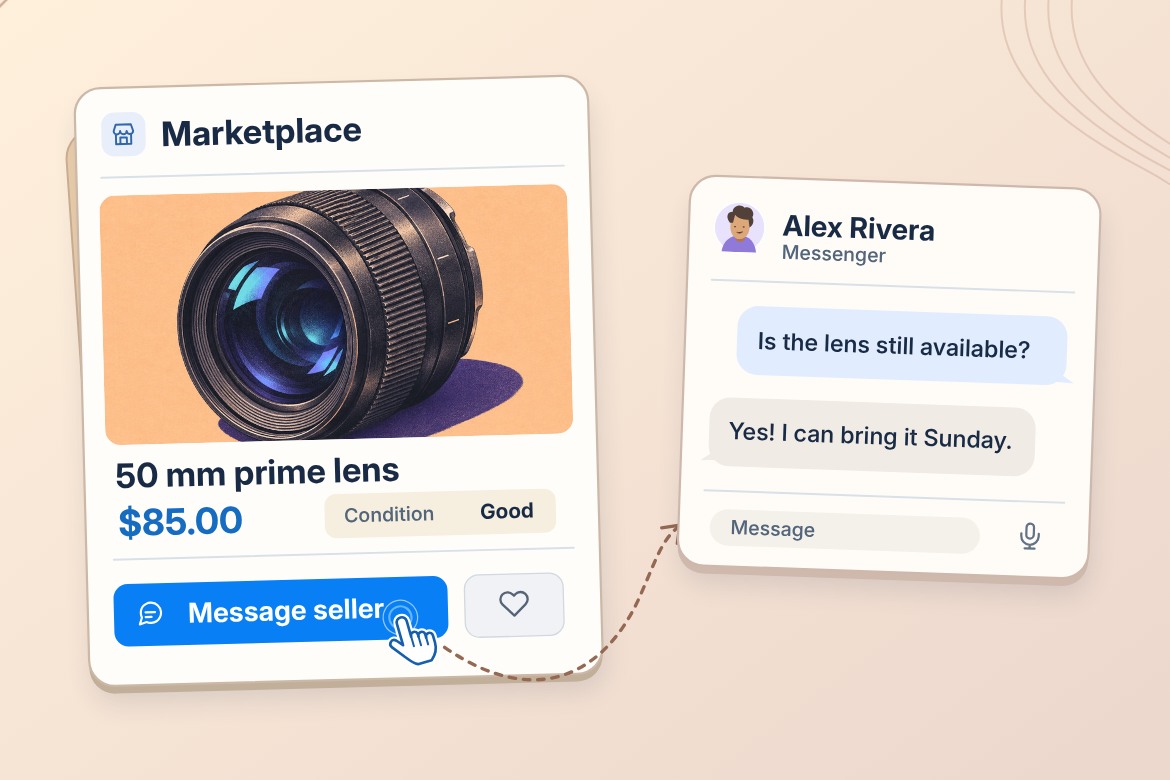
A buyer finds Alex’s used 50 mm lens listed for $85. Choosing Message seller opens a private Messenger conversation where the buyer asks if the lens is still available.

Alex offers to bring it on Sunday, and they can arrange pickup in the same thread.

Marketplace listings
A buyer taps Message seller on a 50 mm lens listing. In the Messenger conversation, the buyer asks whether the lens is available and Alex offers to bring it on Sunday.

Choose where uploads live

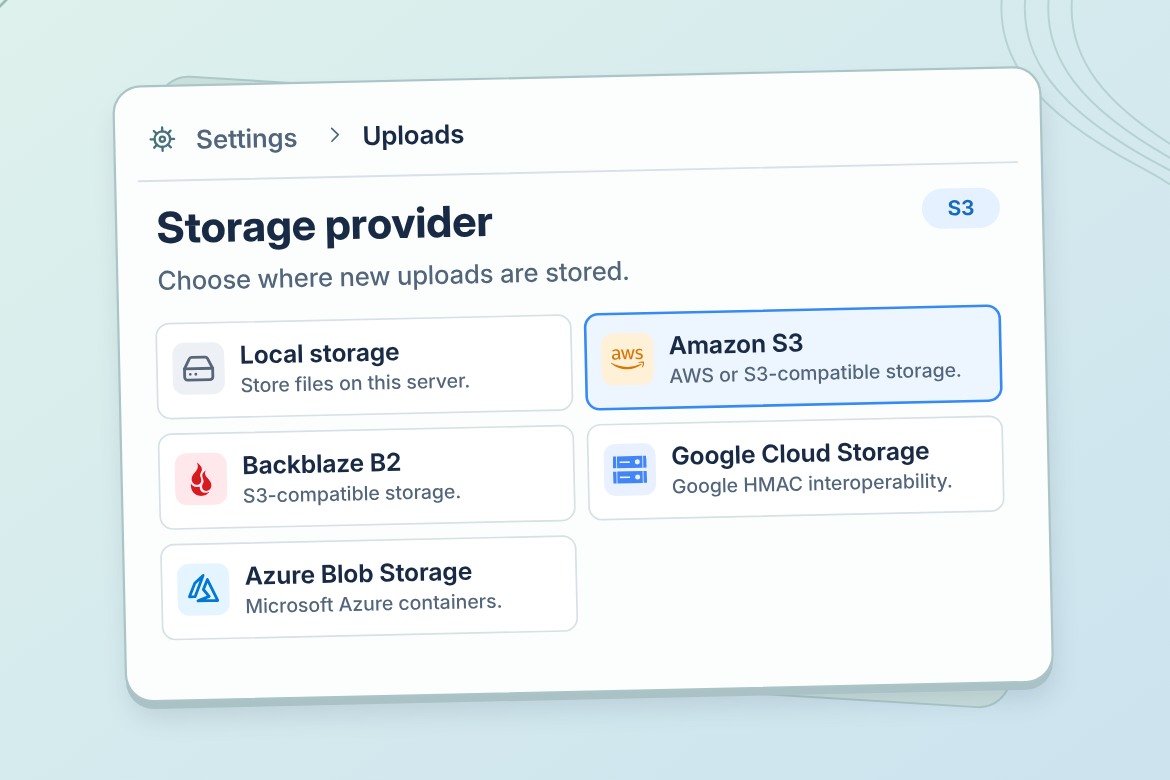
In Settings → Uploads, the administrator selects Amazon S3 for new files, including photos, avatars, and attachments.

The network can also keep files on its own server or use an S3-compatible service, Backblaze B2, Google Cloud Storage, or Microsoft Azure Blob Storage.

Storage connection checks
The illustrated Uploads settings show Amazon S3 selected alongside local storage, Backblaze B2, Google Cloud Storage and Azure Blob Storage.

Illustration

Original image

More ways to connect

Give your members the tools to share, discover, and stay in touch.

Bring people together

Groups, communities, profiles, and social Pages give every interest a space.

Explore social features

Try RevoGram for yourself

The live demo is open to guests. Browse public content on desktop or mobile, and sign in when you’re ready to participate.

Visit the live demo

Build your community with RevoGram

Your own social network. Your brand. A place for people to connect.